

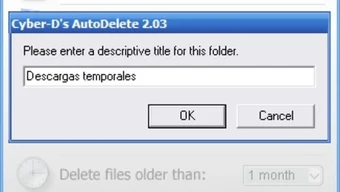

Description
Download Auto Delete – Free Secure File Management Tool for Windows
Why Auto Delete is a Must-Have for Windows Users
In today’s digital world, managing files on your computer can quickly become overwhelming. Temporary files, cache data, old downloads, and cluttered folders consume valuable storage space and slow down your system. That’s where Auto Delete comes in—a lightweight yet powerful utility designed to automate file cleanup on Windows. Developed by Cyber-D, this free software offers a simple interface combined with advanced automation features, making it an ideal choice for both casual users and tech-savvy individuals.
Auto Delete works by allowing you to define custom rules based on file extensions, folder paths, and age thresholds. For instance, you can set it to automatically delete all .tmp or .log files older than 7 days, or remove .jpg files from your Downloads folder after 30 days. The program runs silently in the background, starting automatically with Windows, so you don’t have to remember to clean up manually. This hands-off approach ensures your system stays optimized without interrupting your workflow.
One of the standout features is the ability to choose between secure deletion and moving files to the Recycle Bin. Secure deletion ensures that sensitive data cannot be recovered, which is crucial for users concerned about privacy. Whether you’re managing personal files or working in a corporate environment, Auto Delete provides peace of mind. Its minimal system footprint means it won’t slow down your PC, and the installation process is straightforward—just download the installer, run it, and start setting up your rules. With Auto Delete, you can reclaim gigabytes of storage space and maintain a clean, organized digital workspace with just a few clicks.
Key Features That Make Auto Delete Stand Out
Auto Delete isn’t just another file cleaner—it’s a smart, customizable tool built for real-world use. Its core strength lies in its flexibility and ease of configuration. The software supports multiple file types and allows users to create detailed filtering rules based on file extension, folder location, and age. For example, you can configure it to automatically remove all .cache files from your browser’s temporary directory every week, or purge old .zip files from your backup folder after 60 days.
Another major advantage is the scheduled cleanup feature. You can set Auto Delete to run daily, weekly, or monthly, ensuring consistent maintenance without manual intervention. This is particularly useful for users who generate large volumes of temporary data, such as graphic designers, developers, or content creators. The tool also includes a preview mode, allowing you to see which files will be deleted before execution—great for testing rules and avoiding accidental deletions.
Security is a top priority. Auto Delete offers two deletion modes: standard deletion (moving to Recycle Bin) and secure deletion (overwriting data multiple times). The secure erase option complies with international data destruction standards, making it suitable for handling sensitive information. Additionally, the software logs all actions, so you can review what was deleted and when. This transparency builds trust and helps prevent data loss. The user interface is clean and intuitive, with clear sections for adding rules, managing schedules, and viewing logs. Whether you're a beginner or an advanced user, Auto Delete adapts to your needs.
Auto Delete Features at a Glance
- Custom file rules based on extension, folder, and age
- Scheduled cleanup (daily, weekly, monthly)
- Secure file deletion with overwrite options
- Preview mode to review files before deletion
- Background operation with auto-start on Windows boot
- Comprehensive logging for audit and recovery
- Lightweight & fast – minimal impact on system performance
How to Install and Use Auto Delete on Windows
Getting started with Auto Delete is quick and hassle-free. Begin by visiting the official download page and selecting the latest version of the software. The installer is small in size (under 5MB), ensuring a fast download even on slow connections. Once downloaded, run the executable file. The setup wizard will guide you through the installation process—just click “Next” a few times and choose your preferred installation directory.
After installation, launch Auto Delete from the Start menu. The main window displays a clean dashboard with options to create new rules, view logs, and manage schedules. To set up your first rule, click “Add Rule” and define the criteria: select the folder path (e.g., C:\Users\YourName\Downloads), specify the file extensions (e.g., .tmp, .log, .bak), and set the age threshold (e.g., “older than 7 days”). You can also choose the deletion method—either move to Recycle Bin or perform a secure erase.
Next, configure the schedule. Click “Schedule” and select how often you want the cleanup to run—daily, weekly, or monthly. You can also set a specific time, such as 2:00 AM when your PC is idle. For added safety, enable the “Preview Mode” before running the first cleanup. This shows you exactly which files will be affected, so you can adjust rules if needed. Once everything is set, click “Save” and let Auto Delete do the rest. The software runs silently in the background, and you’ll notice improved system performance and more available disk space over time.
For advanced users, Auto Delete supports command-line execution, allowing integration into batch scripts or task schedulers. This makes it ideal for IT administrators managing multiple systems. The software also supports portable mode, meaning you can run it from a USB drive without installation—perfect for temporary use or on shared computers.
Compatibility and System Requirements
Auto Delete is designed specifically for Windows operating systems, including Windows 7, 8, 10, and 11. It supports both 32-bit and 64-bit architectures, ensuring broad compatibility across older and newer machines. The software does not require administrator privileges to run, although certain folder access may require elevated permissions depending on your system setup.
Since Auto Delete is a lightweight utility, it has minimal system requirements. You only need a standard PC with at least 1 GB of RAM and 10 MB of free disk space. It runs efficiently on low-end hardware and doesn’t consume significant CPU or memory resources. This makes it suitable for use on laptops, desktops, and even older systems where performance is a concern.
While Auto Delete is currently only available for Windows, its functionality fills a critical gap in file management tools. For users on Mac or Linux, similar tools like Automator (Mac) or cron + find (Linux) offer comparable automation, but Auto Delete stands out for its simplicity and user-friendly interface. If you’re a Windows user looking for a reliable, free, and secure way to automate file cleanup, Auto Delete is one of the best options available.
Pros and Cons of Auto Delete
Pros:
- Free to download and use with no hidden costs or ads
- Intuitive interface – easy to set up and manage rules
- Secure deletion with overwrite options for sensitive data
- Background operation – runs automatically with Windows startup
- Scheduled cleaning – customizable frequency and timing
- Preview mode – prevents accidental deletions
- Lightweight – minimal system resource usage
Cons:
- Windows-only – no support for Mac or Linux
- No cloud integration – works only with local files
- Basic logging – lacks advanced analytics or reporting
Frequently Asked Questions (FAQ)
Final Verdict: Why You Should Download Auto Delete Today
Auto Delete is a reliable, free, and secure solution for anyone looking to maintain a clean and efficient Windows system. Its ability to automate file cleanup with customizable rules, secure deletion, and background operation makes it a standout in the world of file management tools. Whether you’re a student, professional, or casual user, this software helps you reclaim storage space, improve performance, and reduce digital clutter—all without lifting a finger.
With its user-friendly interface, lightweight design, and powerful automation features, Auto Delete delivers real value at no cost. The inclusion of preview mode and secure erase options ensures safety and peace of mind. While it’s limited to Windows, its functionality far exceeds that of many paid alternatives.
Download Auto Delete now and take control of your digital workspace. Keep your PC organized, protect your privacy, and enjoy a faster, cleaner computing experience—starting today.
Guides & Tutorials for Auto Delete
How to install Auto Delete
- Click the Preview / Download button above.
- Once redirected, accept the terms and click Install.
- Wait for the Auto Delete download to finish on your device.
How to use Auto Delete
This software is primarily used for its core features described above. Open the app after installation to explore its capabilities.
User Reviews for Auto Delete 0
No reviews found





